
Quickly find, organize, and manage exams using Sirona Worklists.
Understand the Default Worklist
After logging in, Sirona opens to the Public Worklist → Pending queue as your primary starting point. This worklist shows all exams waiting to be read
Find Exams Quickly
Use tools in the worklist to locate studies:
- Search → Utilize the Search bar to to search the worklist you are currently in by Accession #, MRN, Patient Name
- Filter/Sort → available on most columns
- Clear Filters → click X on filtered column
Customize Your Columns
Control what information is visible in your worklist:
- Click at the top right of the screen
- Check/uncheck fields to show or hide
- Drag (dots) to reorder columns
- Use pins to lock columns left or right
- Drag column edges in the worklist to resize columns
- Scroll horizontally to view additional columns when needed
Open Exams or Copy Information
- Click most fields to open the exam
- Hover to copy:
- Patient Name
- MRN
- Accession Number
Tip: Look for the hand cursor to indicate clickable fields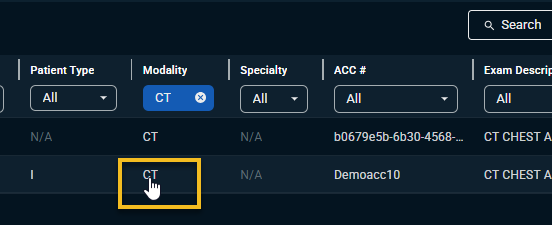
Understanding Worklist Types
Different worklists help track study status:
- Pending → waiting to be read
- In Progress → currently being read or assigned
- Recently Read → last 30 days
In Progress Indicators:
Lock icon = open by another user
Yellow clock = recently signed (3-minute window)
Use My Queue (Private Worklist)
My Queue helps you manage exams assigned to you:
- Contains:
- Assigned exams
- Draft exams
To add an exam:
- Select checkbox next to study
- Use bottom menu
- Click Add to Queue
Note: Exams move out of Pending and into In Progress
Comments
0 comments
Please sign in to leave a comment.